
Table of Contents
Setting up a production environment in Linux requires precision, security, and performance. Linux, with its powerful command-line interface (CLI), provides a powerful set of tools to manage this process. Here are 6 essential Linux commands that are especially useful for setting up a production environment.
6 Essential Linux Commands
1. history (View Command History)
The history command displays the history of commands executed in the terminal. In a production environment, this is extremely useful for reviewing past actions, troubleshooting, or repeating previously executed linux commands.
Usage
     history          # Display all previously run commands

     history | grep <command>  # Search for specific commands in history

     !<number>        # Re-run a command from history by its number
Example: Searching for a previously run `systemctl` command.
history | grep systemctl
Why It’s Helpful: history allows you to track what has been done on the system, which is invaluable when retracing steps, especially in a production environment where accuracy is crucial.
2. tail (View Log Files in Real-Time)
Monitoring log files in real-time is essential for diagnosing issues, especially in production environments. The tail command allows you to view the last few lines of a file, typically a log file, and with the -f option, you can continuously monitor changes as they happen.
Usage
tail -f /path/to/logfileExample: Monitoring an Nginx access log to see incoming traffic in real-time.
tail -f /var/log/nginx/access.logWhy It’s Helpful: tail -f is invaluable for real-time monitoring of server logs during deployments, troubleshooting, or performance tuning.
3. top / htop (System Monitoring)
Monitoring system resources in real-time is crucial in production environments. The top and htop linux commands provide dynamic views of running processes, including CPU, memory usage, and more.
topUsage
htop(Note: htop is more user-friendly and colorful, but it may require installation.)
4. systemctl (Service Manager)
Managing services (such as starting, stopping, or restarting them) is a common task when setting up production environments. The systemctl command interacts with systemd, which handles service management in modern Linux distributions.
Usage
     systemctl start <service_name>

     systemctl stop <service_name>

     systemctl restart <service_name>

systemctl status <service_name>Example: Restarting the Nginx web server after a configuration change.
systemctl restart nginxWhy It’s Helpful: Efficient service management is crucial for tasks like applying updates or reconfigurations without rebooting the entire server.
5. ufw (Uncomplicated Firewall)
Security is critical in a production environment. The ufw command (Uncomplicated Firewall) is a simple and effective way to manage firewall rules and secure your server.
Usage
     ufw allow <port_number>     # To allow traffic on a port

     ufw deny <port_number>      # To deny traffic on a port

     ufw enable                  # To enable the firewall

ufw status # To check firewall status Example: Allowing HTTP and HTTPS traffic.
     ufw allow 80/tcp

     ufw allow 443/tcp
Why It’s Helpful: ufw simplifies the process of securing your production environment, reducing exposure to attacks by controlling inbound and outbound traffic.
6. screen(Terminal Multiplexer)
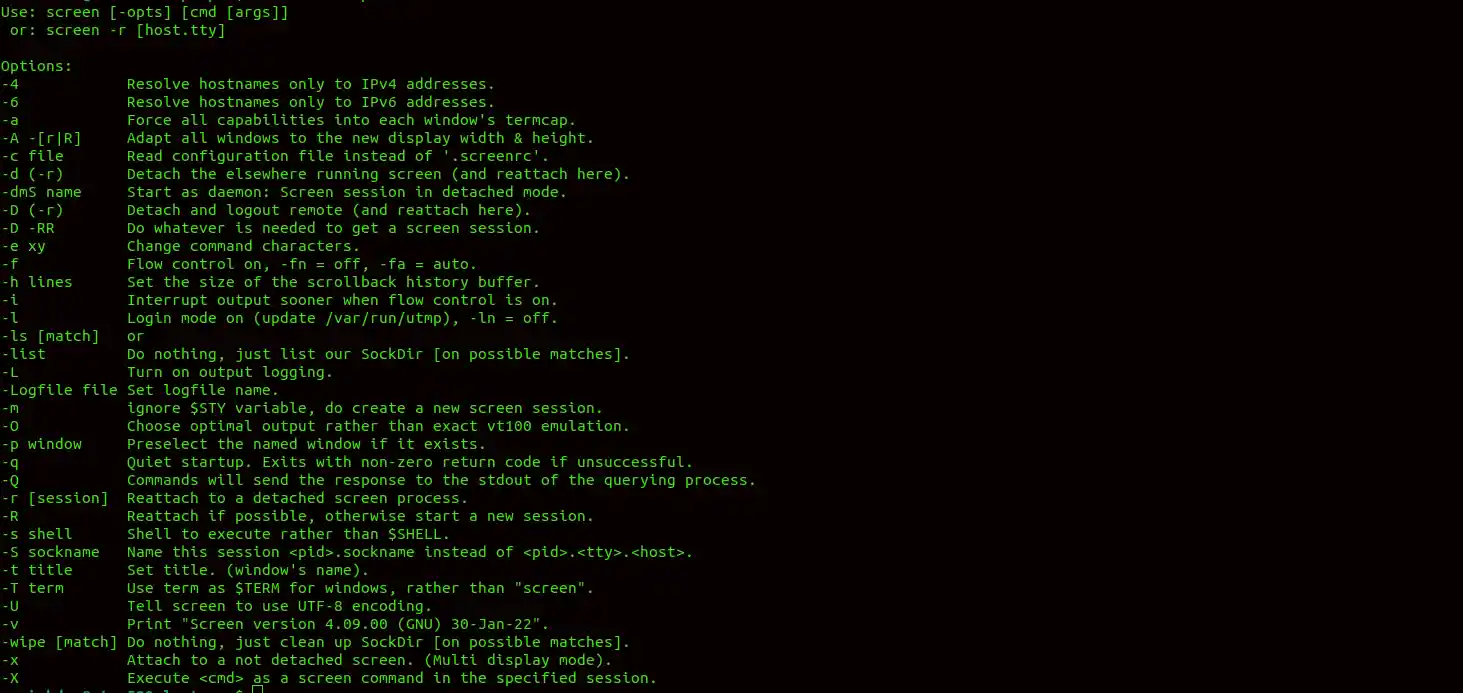
In production environments, you often need to run long-running processes or multitask within a single terminal session. The screen command is a terminal multiplexer that allows you to run multiple terminal sessions inside one SSH session. You can detach from the session and reconnect to it later without interrupting the running processes.
Usage
     screen                   # Start a new screen session

     screen -S <session_name>  # Start a new named session

     screen -r <session_name>  # Reattach to a screen session

screen -ls # List all running screen sessions Example: Running a long deployment script in a screen session.
     screen -S deploy_session

     ./deploy_script.sh
Then detach from the session using Ctrl + A, followed by D.
Why It’s Helpful: The screen allows you to keep tasks running even if your SSH connection is interrupted. You can also manage multiple tasks in one SSH session without worrying about losing progress.
Conclusion
These six Linux commands (history, tail, top/htop, systemctl, ufw, and screen) provide essential tools for managing, securing, and monitoring a production environment in Linux.
Whether you’re reviewing command history, monitoring logs, managing services, or ensuring security, these Linux commands will streamline your workflow and help ensure a stable and secure production setup. You could also check their help(manual) pages as well by using the –help flag on the commands.
screen --help