
Table of Contents
If you’ve ever pulled down an old project and watched it fall over because it needs Node 18 while your machine is running Node 24, you already know the problem. Different projects want different Node.js versions, and reinstalling Node every time you switch between them isn’t a real workflow. Node Version Manager (NVM) solves this by letting you install several Node.js versions side by side and switch between them with a single command.
This guide walks through installing NVM on Windows, Linux, and macOS, installing and switching Node.js versions, using .nvmrc for project-specific versions, and fixing the problems that trip people up most often.
What Is Node Version Manager (NVM)?
What Does NVM Do?
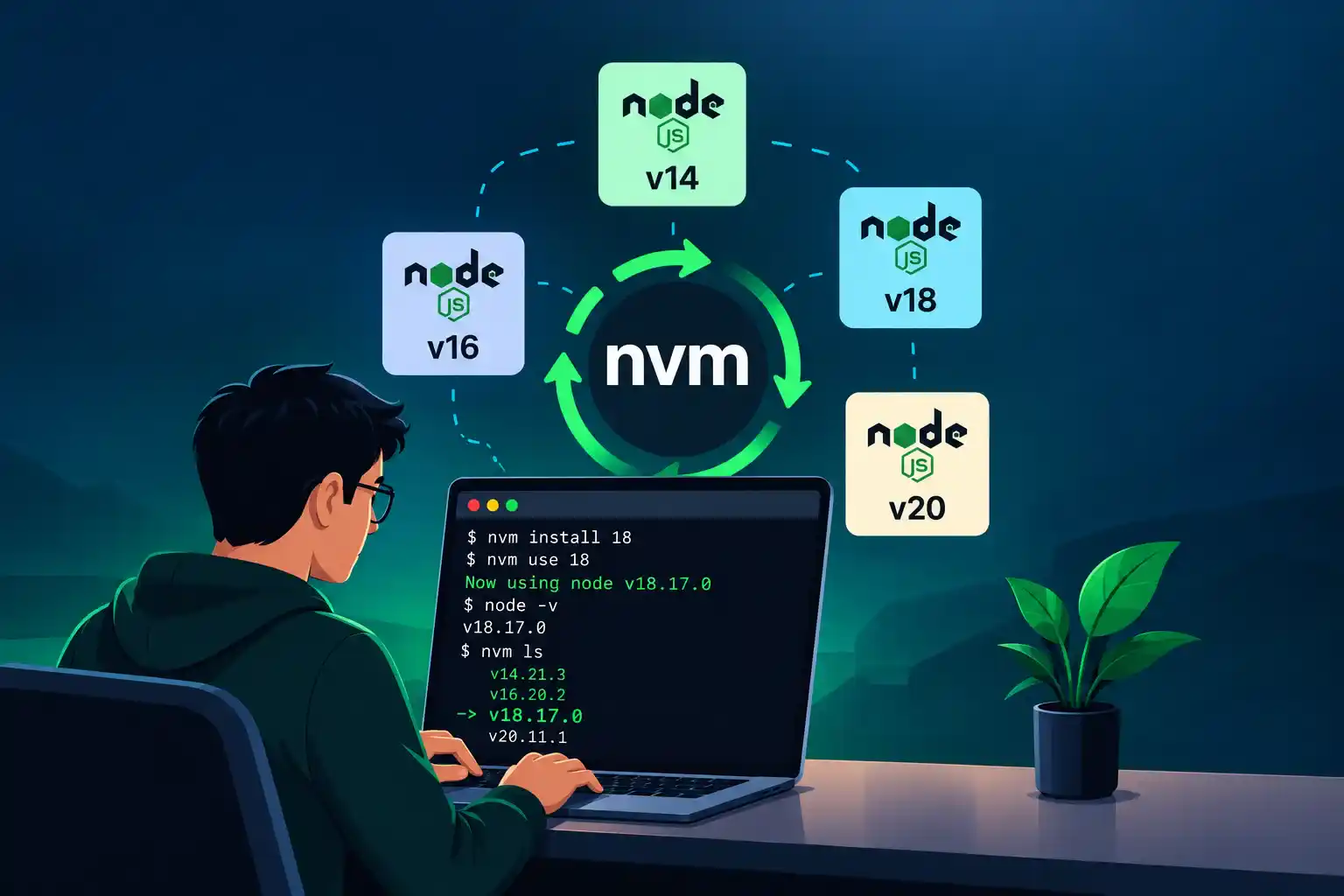
NVM installs itself once per machine, then manages Node.js versions on top of that. Instead of one system-wide Node install, you get a library of versions you can switch between per project, per terminal session, or globally.
Why Should You Use Node Version Manager?
- Manage multiple Node.js versions without them conflicting with each other
- Switch versions in seconds with a single command
- Maintain project compatibility across older and newer codebases
- Test applications against different Node.js releases before upgrading
- Avoid touching your system-wide Node installation
- Keep your development environment consistent across machines and teammates
NVM vs. Installing Node.js Directly
| Direct Node.js installation | NVM |
|---|---|
| Usually one active version | Multiple versions installed side by side |
| Switching versions is a manual reinstall | nvm use <version> |
| System-level setup | User-level version management |
| Harder to test legacy projects | Easy version switching |
How to Install Node Version Manager on Windows
Important: the original nvm-sh/nvm is a POSIX shell script built for Unix, macOS, Linux, and Windows WSL; it doesn’t run natively on Windows. Windows users need a separate tool, now maintained in the nvm-windows/nvm GitHub organization (formerly coreybutler/nvm-windows).
Download and Install
- Go to the NVM for Windows releases page.
- Download the latest installer for your architecture (amd64 or arm64).
- Run the installer and choose:
- The NVM installation directory
- The Node.js symlink directory
- Complete the installation wizard.
You can also install it via a package manager if you prefer: winget install CoreyButler.NVM for Windows or choco install nvm.
Verify the Installation
nvm version
nvm list
nvm version confirms NVM itself is installed correctly, and nvm list shows which Node.js versions (if any) are already installed.
How to Install Node Version Manager on Linux
This is usually where developers spend the most time, since Linux is the most common home for nvm-sh/nvm.
Prerequisites
- curl or wget for downloading the install script
- build-essential (or your distro’s equivalent) if you’ll be compiling Node.js from source
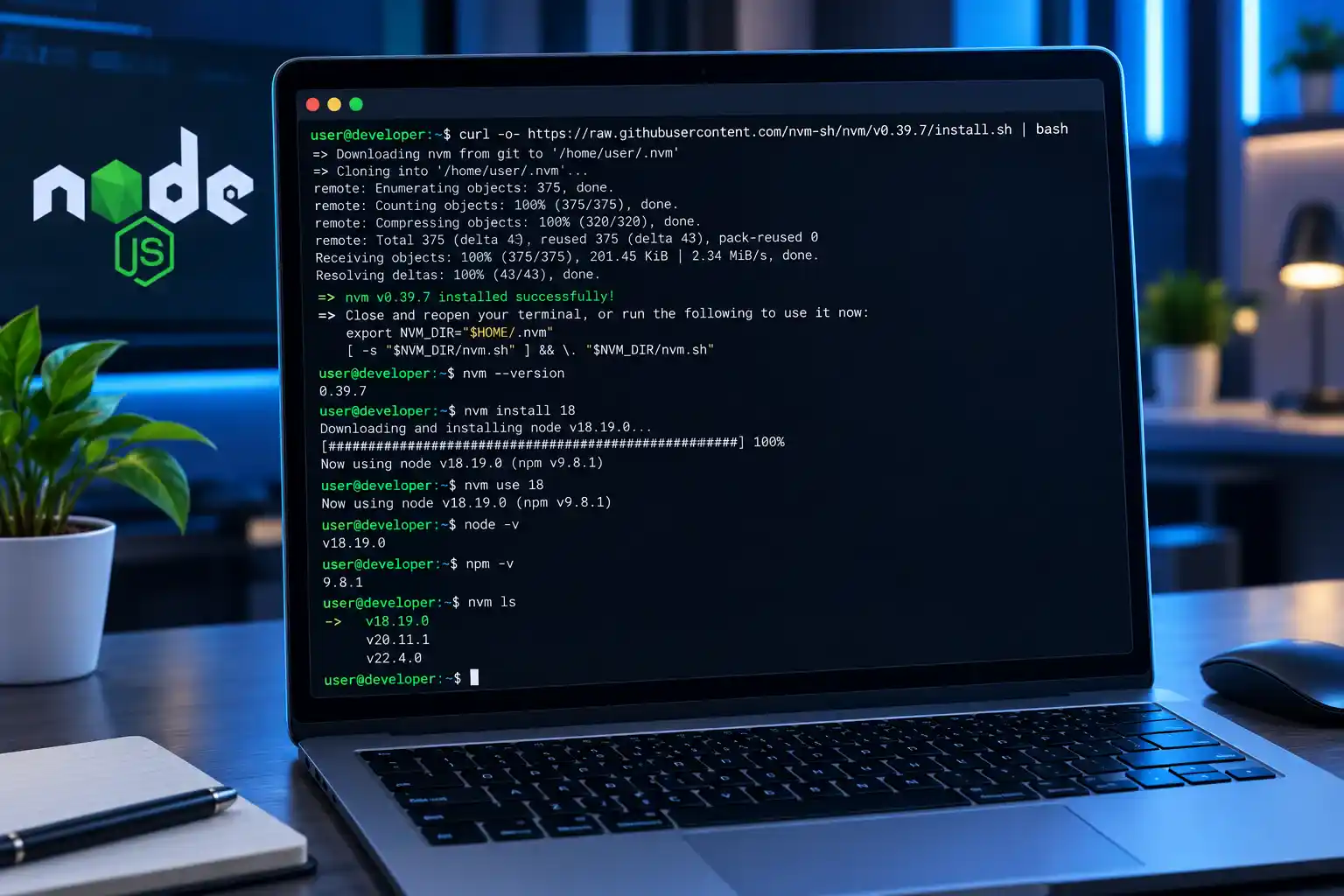
Install NVM Using the Official Script
Use the current release rather than an old pinned version:
curl -o- https://raw.githubusercontent.com/nvm-sh/nvm/v0.40.7/install.sh | bashOr with wget:
wget -qO- https://raw.githubusercontent.com/nvm-sh/nvm/v0.40.7/install.sh | bashSince NVM releases fairly often, it’s worth checking the releases page for the latest version number before running this.
Configure Your Shell
The installer usually adds these lines to your profile automatically, but if it doesn’t, add them yourself to .bashrc, .bash_profile, .zshrc, or .profile:
export NVM_DIR="$HOME/.nvm"
[ -s "$NVM_DIR/nvm.sh" ] && \. "$NVM_DIR/nvm.sh"
Then reload your shell:
source ~/.bashrcVerify the Installation
command -v nvm
nvm --version
Use command -v nvm rather than which nvm. NVM is a shell function loaded into your session, not a standalone executable, so which often reports it as “not found” even when it’s working fine.
How to Install Node Version Manager on macOS
Prerequisites
- Terminal (Bash or Zsh)
- Xcode Command Line Tools, if you’ll be compiling native modules: xcode-select –install
Install NVM
Use the official install script, not Homebrew. The NVM project explicitly states that Homebrew installation isn’t supported and can lead to path and versioning issues down the line.
curl -o- https://raw.githubusercontent.com/nvm-sh/nvm/v0.40.7/install.sh | bashConfigure Zsh
Modern macOS ships with Zsh by default, so add the init snippet to .zshrc:
export NVM_DIR="$HOME/.nvm"
[ -s "$NVM_DIR/nvm.sh" ] && \. "$NVM_DIR/nvm.sh"
Then run: source ~/.zshrc.
Verify
command -v nvm
nvm --version
Apple Silicon vs. Intel Macs
If you’re on Apple Silicon and need an older Node.js release that predates native arm64 builds, you may hit architecture errors. NVM will generally handle this via Rosetta-compatible builds, but it’s worth knowing if an old version misbehaves.
How to Install Node.js Using Node Version Manager
Latest Version
nvm install nodenode is an alias for the latest available Node.js release.
Latest LTS Version
nvm install --ltsLTS (Long Term Support) releases are the safer default for production apps; they get security and bug fixes for longer and see far more real-world testing than Current releases. As of now, Node 24 is Active LTS, Node 22 is in Maintenance LTS, and Node 26 is the Current release.
A Specific Version
nvm install 24or a specific patch:
nvm install 24.10.0Verify
node -v
npm -v
Essential NVM Commands
| Command | Purpose |
|---|---|
| nvm ls | List installed Node.js versions |
| nvm ls-remote | View versions available to install |
| nvm install <version> | Install a version |
| nvm use <version> | Switch to a version |
| nvm alias default <version> | Set the default version |
| nvm uninstall <version> | Remove a version |
| nvm current | Show the active version |
| nvm which <version> | Show the executable path for a version |
| nvm –version | Check the NVM version itself |
A quick practical flow:
nvm install 22
nvm install 24
nvm use 22
nvm use 24
Setting a Default Node.js Version
If you don’t want to run nvm use every time you open a terminal, set a default:
nvm alias default 24Check what’s currently set as default:
nvm alias defaultUsing .nvmrc for Project-Specific Versions

What Is .nvmrc?
A .nvmrc file lets a project declare the Node.js version it expects, so anyone working on it (including CI) uses the same version without guessing.
Create One
echo "24" > .nvmrcUse It
nvm useIf the version isn’t installed yet:
nvm installWhy Teams Rely on It
- Everyone runs the same Node.js version locally
- Fewer “works on my machine” bugs
- Faster onboarding for new developers
- Better alignment between local dev and CI/CD pipelines
Updating Node.js and Migrating Packages

When you move to a new Node.js version, your globally installed npm packages don’t come with you automatically. NVM has a flag for that:
nvm install --reinstall-packages-from=current 24This installs Node 24 and reinstalls your current version’s global packages on top of it. Note that npm itself is versioned separately and may need its own update.
Node Version Manager Environment Variables
A few variables are worth knowing if you need to customize behavior:
- NVM_DIR – where NVM stores itself and installed versions (defaults to ~/.nvm)
- NVM_NODEJS_ORG_MIRROR – set a custom Node.js download mirror
- NVM_IOJS_ORG_MIRROR – set a custom io.js mirror
Most developers never need to touch these, so don’t worry about them unless you’re behind a firewall or using an internal mirror.
Common Node Version Manager Problems and How to Fix Them
nvm: command not found: Usually means your shell profile wasn’t reloaded, or the init snippet is missing or in the wrong file. Restart your terminal or re-source your profile after checking it.
NVM is installed, but Node.js isn’t switching: Run nvm current and which node. If which node doesn’t point into your NVM directory, a system-installed Node.js is likely earlier in your PATH and conflicting with NVM.
Permission denied errors: Don’t reach for sudo on regular NVM commands; that usually means NVM was set up in a system directory instead of your user directory. Reinstall NVM properly instead of patching over it with elevated permissions.
.npmrc prefix conflicts: A prefix setting inside .npmrc can conflict with how NVM manages paths. The official docs flag this combination as incompatible, so remove any prefix line from your global .npmrc if NVM is behaving oddly.
NVM behaves differently across shells: Bash and Zsh read different profile files. If NVM works in one shell but not another, make sure the init snippet is in the profile file that shell actually loads.
NVM Best Practices
- Prefer LTS versions for production work.
- Use .nvmrc for project-specific versions instead of relying on memory.
- Never use sudo with routine NVM commands.
- Periodically remove Node.js versions you no longer use.
- Keep NVM itself updated.
- Check a project’s required Node.js version before upgrading anything.
- Avoid mixing multiple Node.js installation methods on the same machine.
- Double-check the active version with nvm current before running project commands.
NVM vs. Other Node.js Version Managers
NVM isn’t the only option. Volta and asdf solve similar problems with different trade-offs:
- NVM, the most widely adopted option for Unix-like systems, is simple and script-based
- NVM for Windows, a separate, Windows-native project with the same goal
- Volta, faster, pins versions per-project automatically, works well across teams
- asdf, manages multiple language runtimes (not just Node.js) through one plugin system
If you’re only working with Node.js on macOS or Linux, NVM covers what most developers need. If you’re managing several languages or want automatic per-project pinning without a .nvmrc file, it’s worth looking at Volta or asdf.
Conclusion
NVM removes the friction of juggling multiple Node.js versions across different projects. Combined with .nvmrc, it gives you a repeatable, low-maintenance way to keep your team’s environments consistent, whether you’re maintaining an older codebase or building something new. If you’re setting up or standardizing a development environment for a larger team, it’s worth treating version management as part of that broader environment setup rather than an afterthought.
FAQ
Is NVM the same as Node.js?
No. NVM is a tool for installing and switching between Node.js versions; it doesn’t replace Node.js itself.
Is NVM available on Windows?
Not the original nvm-sh/nvm. Windows users need the separate NVM for Windows project, which works the same way conceptually but is built differently under the hood.
How do I install Node.js using NVM?
Run nvm install <version>, or nvm install –lts for the latest Long Term Support release.
How do I switch Node.js versions with NVM?
Run nvm use <version>. If a .nvmrc file exists in your project, just run nvm use with no arguments.
How do I install the latest LTS Node.js version?
nvm install –lts installs it, and nvm use –lts switches to it if it’s already installed.
What is an .nvmrc file?
A plain text file in a project’s root that specifies which Node.js version the project expects, so nvm use picks it up automatically.
How do I check which Node.js version NVM is using?
Run nvm current.
Can I have multiple Node.js versions installed at once?
Yes, that’s the entire point of NVM. Install as many as you need and switch freely with nvm use.
Should I use NVM for production?
NVM itself is a developer tool for managing local environments, not a production deployment mechanism. In production, pin the exact Node.js version in your deployment image or CI configuration instead.